
OIDC Authentication
Learn how to use OIDC providers for auhentication in OrcaCD
OrcaCD supports OIDC authentication, allowing users to log in using their existing accounts from various OIDC providers. This guide will walk you through the process of setting up OIDC authentication in OrcaCD.
Disable password login
When using OIDC authentication, you can disable password login to enhance security. This ensures that users can only log in using their OIDC provider accounts, reducing the risk of unauthorized access through weak or compromised passwords. Before disabling password login, make sure the OIDC authentication is properly configured and tested.
To disable password login, set the DISABLE_LOCAL_AUTH environment variable. Look at the environment variables documentation for more details.
Example (Pocket ID)
To set up OIDC authentication with Pocket ID, follow these steps:
Create a Pocket ID Application
Go to your Pocket ID dashboard and create a new application. Give it a name and leave the redirect URI blank for now.
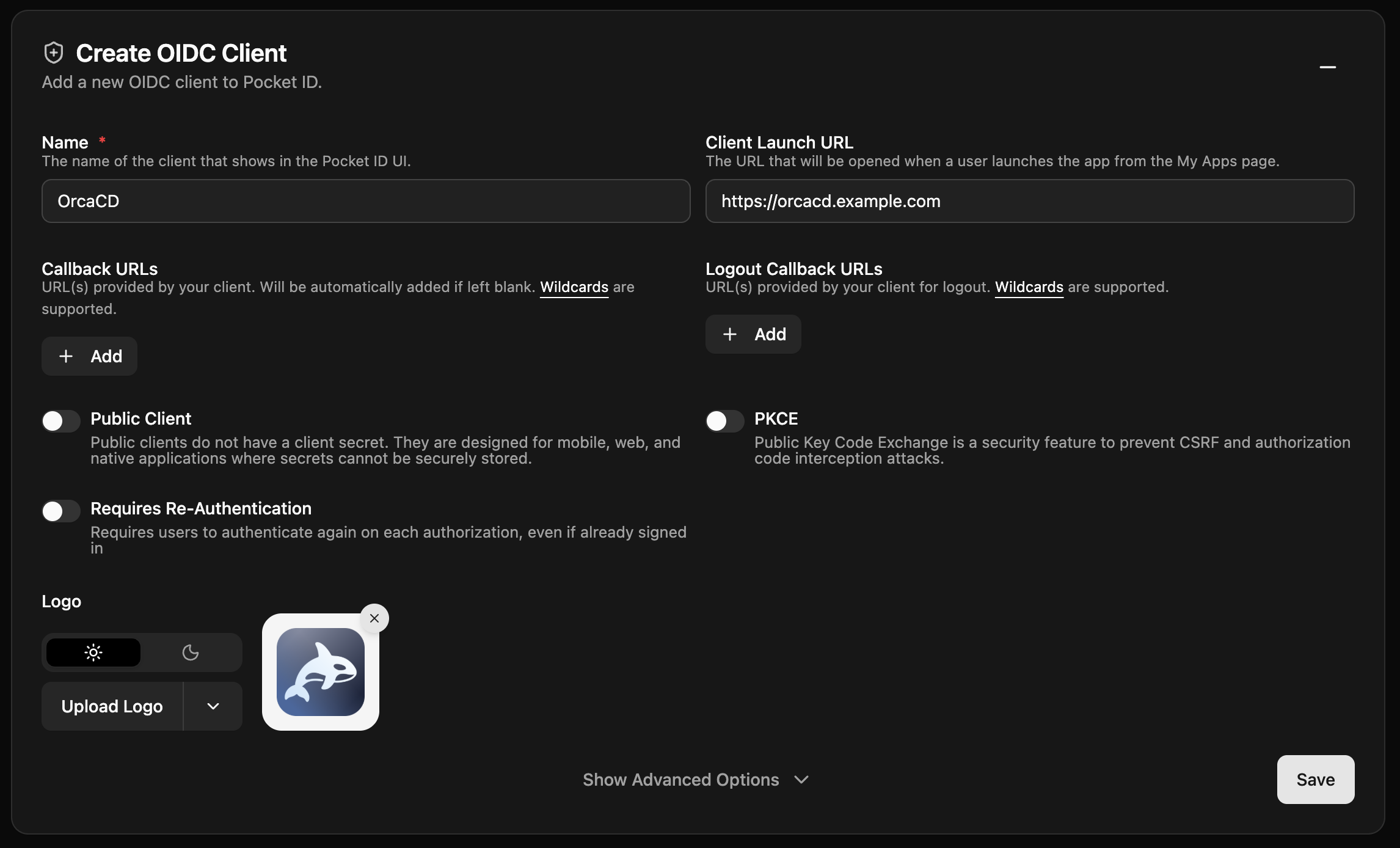
You can find the OrcaCD logo here.
Configure OrcaCD
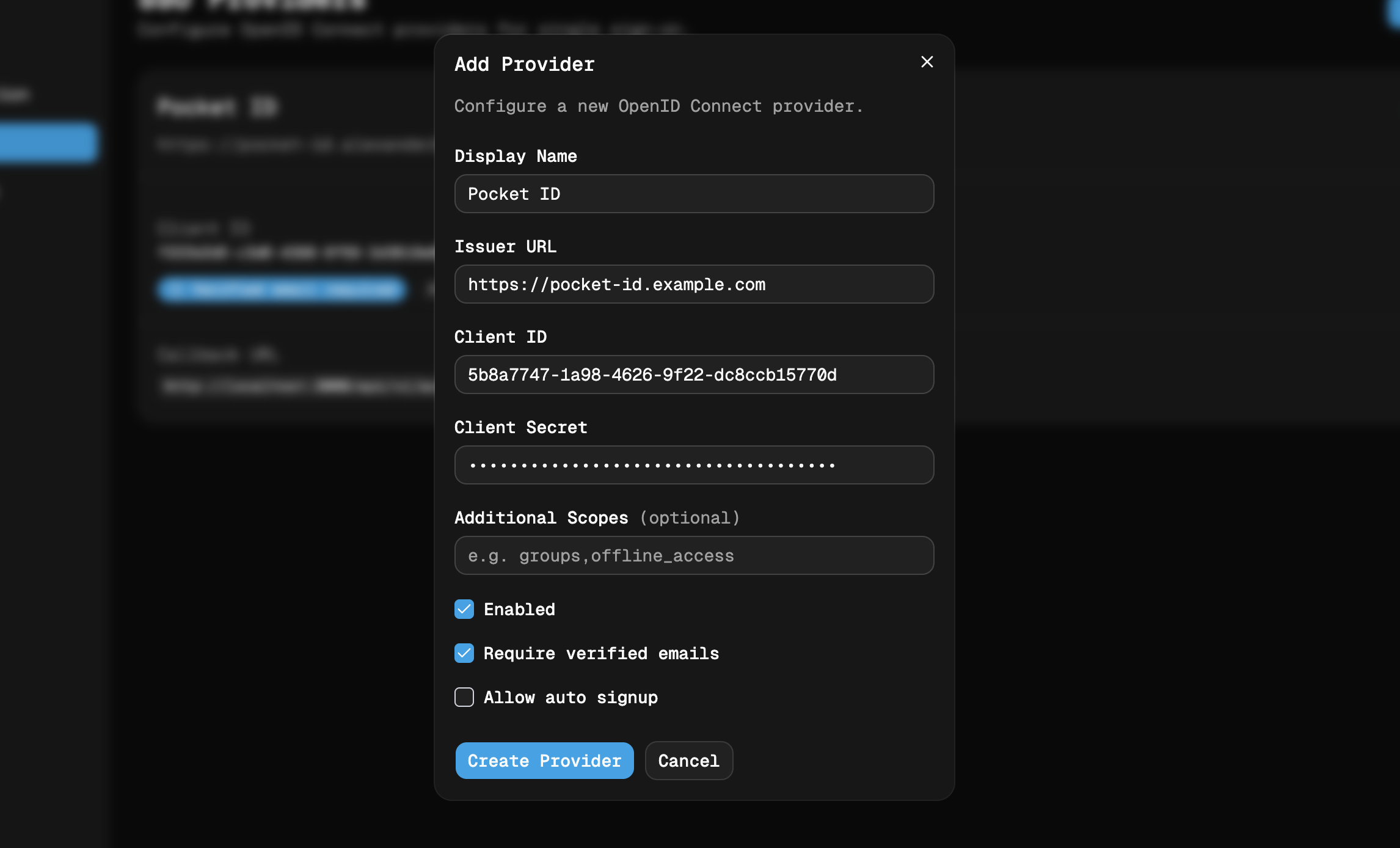
- Go to the OrcaCD Admin settings and navigate to the OIDC configuration section.
- Create a new OIDC provider configuration with the following details:
- Name: A name for your OIDC provider (e.g., "Pocket ID").
- Issuer URL: The issuer URL provided by Pocket ID (e.g.,
https://example.com). - Client ID: The client ID from your Pocket ID application.
- Client Secret: The client secret from your Pocket ID application.
- Save the configuration and ensure it is enabled.
Test the Configuration
- Log out of OrcaCD if you are currently logged in.
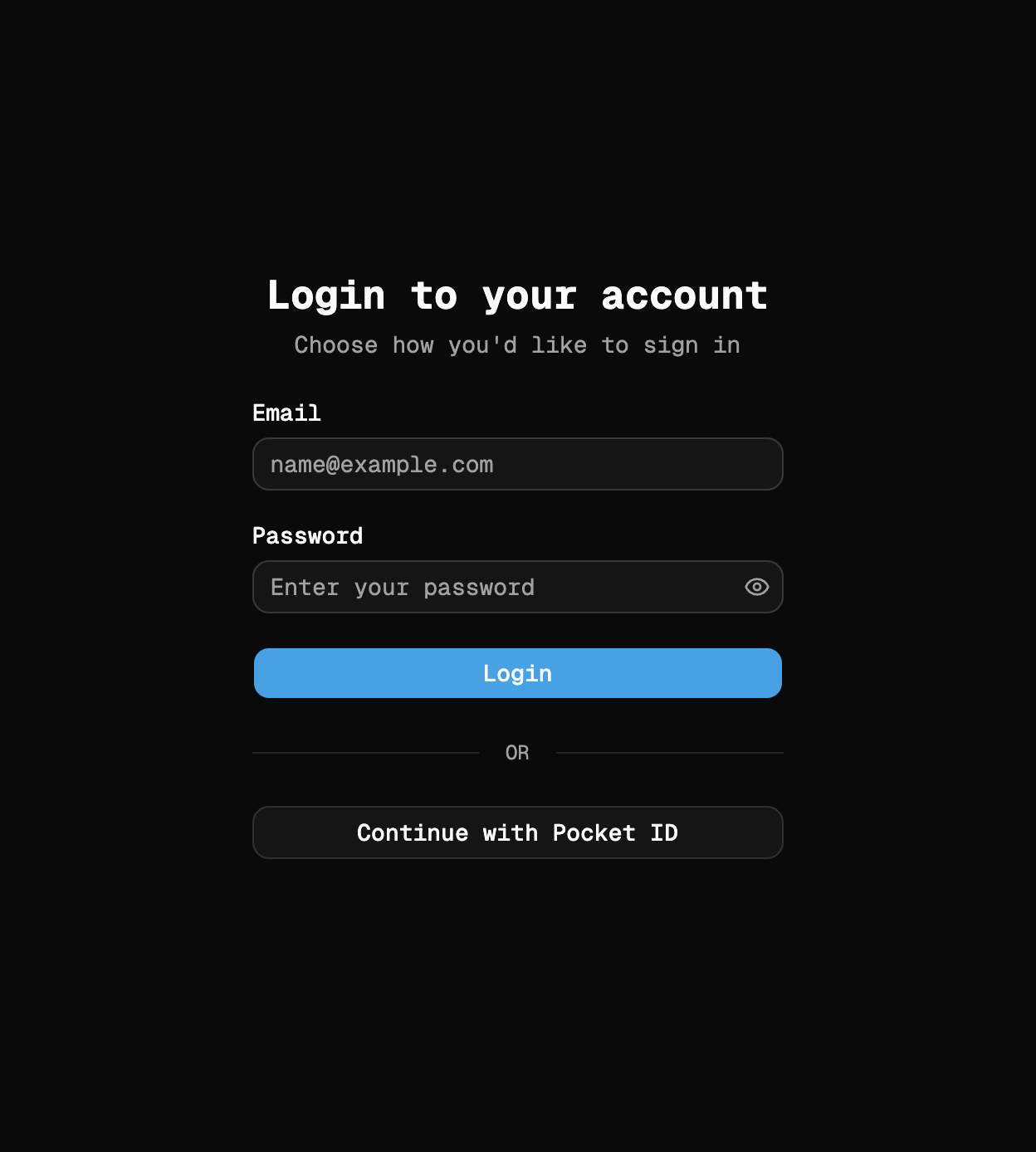
- Click on the "Login with Pocket ID" button on the login page.
- You will be redirected to the Pocket Id login page. Enter your credentials and log in.
- After successful authentication, you will be redirected back to OrcaCD and logged in with your Pocket ID account.
Last updated on