
Rollbacks
Roll back an application to an earlier deployment, manually or automatically
OrcaCD remembers the last 10 successful deployments of every application, including the Compose file and the exact image of every service. If a new version breaks your application, you can go back to one of them.
A rollback only restores the Compose file and the images. Volumes and data migrations are not rolled back, so a new version that already migrated your database may not work with the old one.
Manual Rollback
Open the History of the application and click Roll back next to the deployment you want to go back to. The Agent has to be online, and no other deployment may be running at the same time.
After a manual rollback, auto-sync is paused, so new commits are not deployed until you resume it (see below).
Automatic Rollback
Under Settings → Rollbacks of an application, you can let OrcaCD roll back failed deployments on its own. It is off by default, because a rollback intentionally diverges from the state in Git.
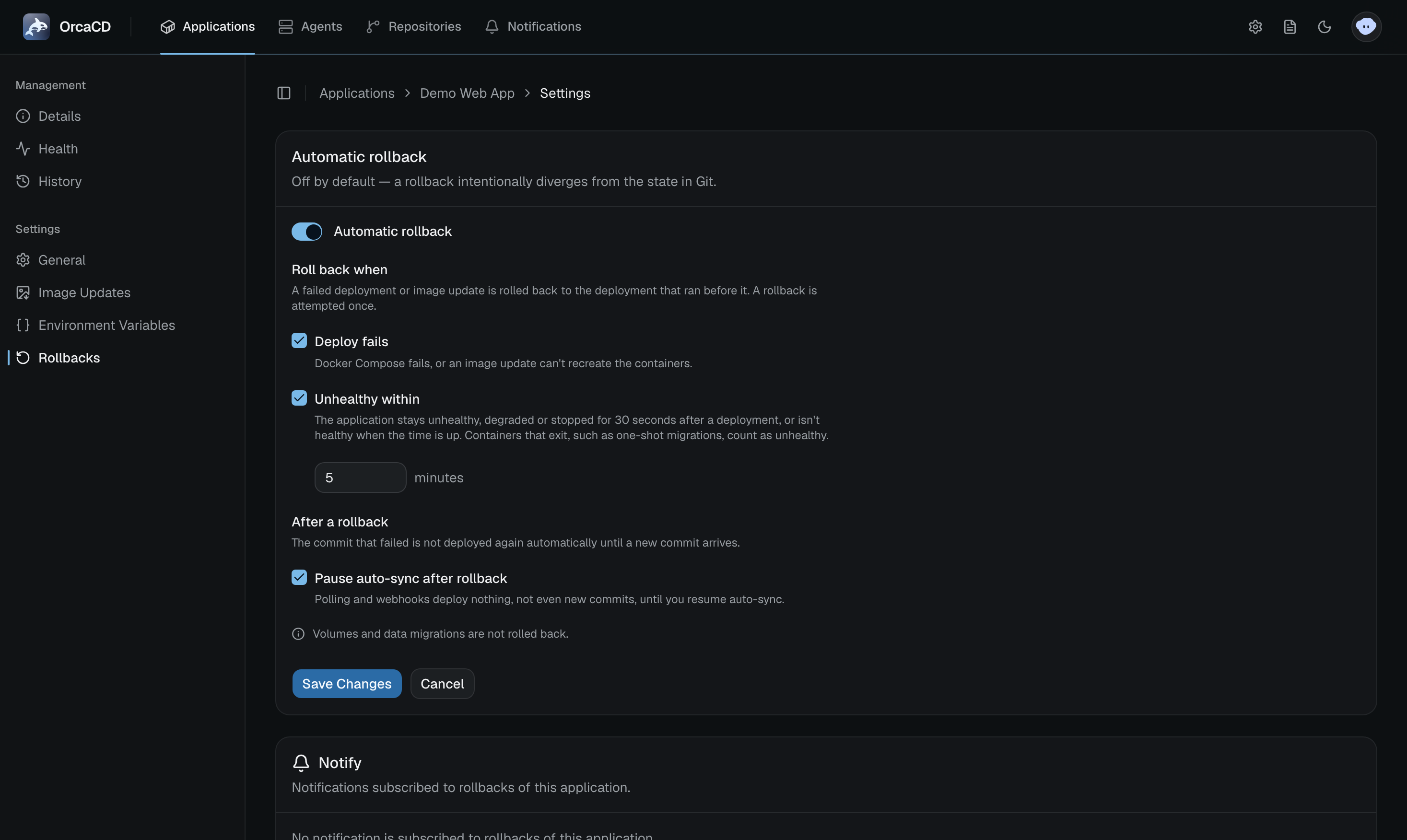
OrcaCD rolls back to the deployment that ran before when:
- Deploy fails: Docker Compose fails, or an image update can't recreate the containers.
- Unhealthy within: after a deployment, the application stays unhealthy, degraded or stopped for 30 seconds, or isn't healthy when the time is up (5 minutes by default).
A rollback is only attempted once. If it fails as well, the application stays out of sync and you get a Rollback failed notification.
One-shot containers
Containers that exit after their work is done, such as database migrations or init jobs, count as unhealthy. Don't use the health check for applications with such containers, or every deployment will be rolled back.
After a Rollback
A rolled back application is shown as Out of Sync, with a banner on its details and history pages. From there, you can either deploy the desired commit again with Retry deploy or continue deploying new commits with Resume auto-sync.
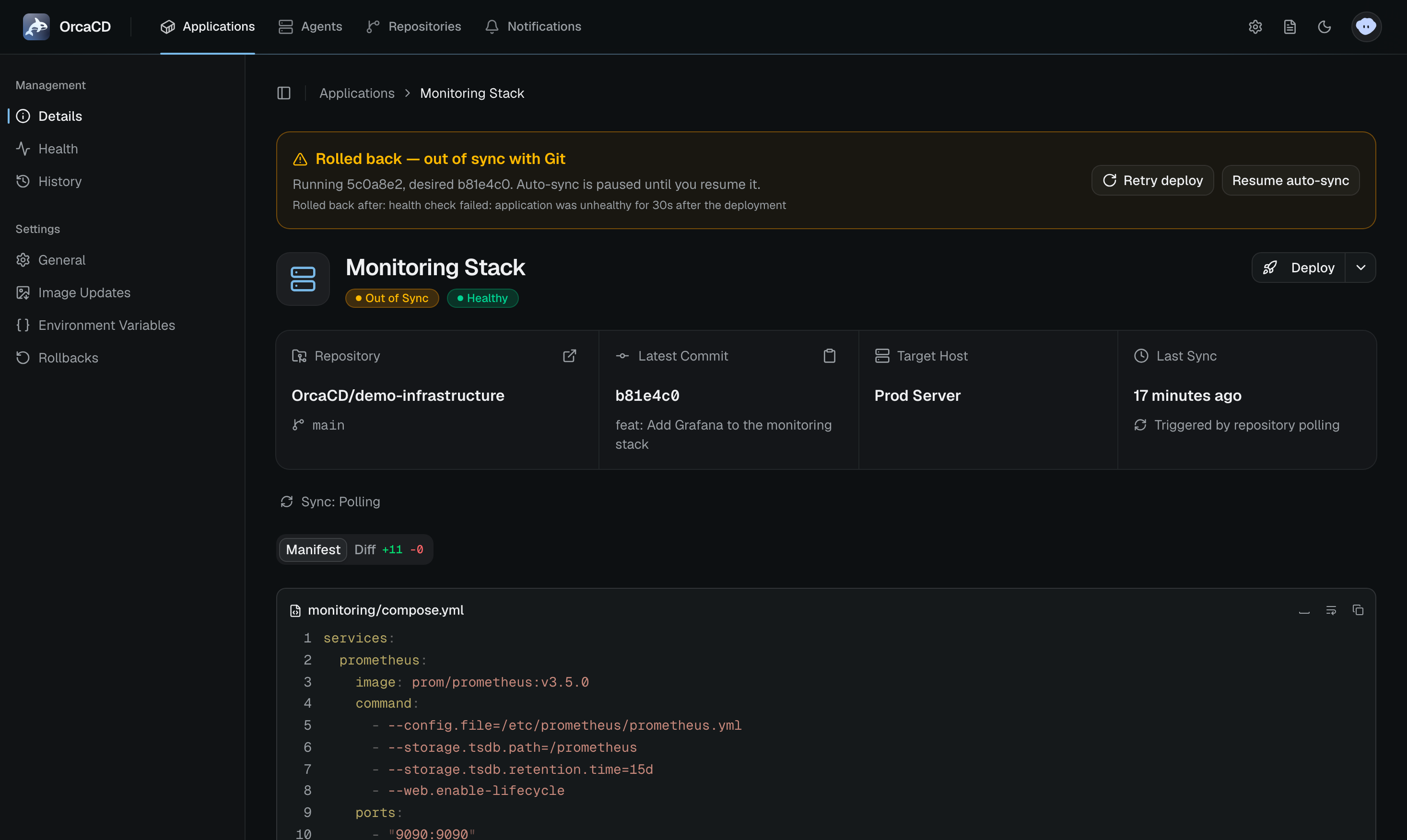
With Pause auto-sync after rollback enabled (default), polling and webhooks deploy nothing until you resume auto-sync. Without it, new commits are deployed as usual, but the commit that failed is never deployed again automatically.
To be notified about rollbacks, enable the Rolled back and Rollback failed events in your notifications.
Last updated on